Who this is for: self-serve plans (Free, Starter, Pro, Scale). If you bought a Cleanlist AppSumo lifetime deal, your features, limits, and pricing are different — see the AppSumo documentation instead. Support agent: confirm whether the user is self-serve or AppSumo before giving plan-specific advice.
TL;DR: Upload a CSV with names and companies (or just emails — reverse lookup is supported), map columns, select email and/or phone enrichment, and let Cleanlist's waterfall system find contact data. 1 credit per email, 10 per phone, 0 for failed lookups. You can also bulk-enrich companies (1 credit per company) and find personal emails in bulk (1.5 credits per fresh lookup, free on a cache hit). Phone validation (carrier, line type) is a separate on-demand column at 0.5 credits/row.
Bulk Enrichment Guide
Bulk enrichment allows you to upload a CSV file with your leads and enrich hundreds or thousands of contacts at once. This guide walks through the entire process.
Overview
Best for:
- Enriching large lead lists (100+ contacts)
- Importing data from other tools
- One-time data enrichment projects
- Migrating from other enrichment services
Credits:
- Email: 1 credit per successful enrichment
- Phone: 10 credits per successful enrichment
- No charge for failed enrichments
Other Bulk Actions
Beyond CSV-based contact enrichment, you can run more bulk actions on any lead list directly from the bulk-actions menu.
Bulk Enrich Company
Add firmographics to every company on a list in one pass — industry, headcount, founded year, domain, social links, and more.
- Cost: 1 credit per company
- No charge for companies that can't be enriched
- See Company Enrichment for what's returned
Find Personal Email (bulk)
Find personal (non-work) email addresses for your leads. The lookup runs a cascade — it checks the cache first, then Wiza, then LeadMagic as a fallback.
- Cost: 1.5 credits per billable attempt — charged whenever providers actually run, hit or miss. A cache hit is free, and a total provider outage isn't charged
- Stored separately: personal emails are saved in their own field, distinct from work emails, so they never overwrite verified business addresses
- See Find Personal Email for details
Phone Number Validation
Validate the phone numbers already on a lead list and get carrier, line type, and status for each number. This is an on-demand column powered by ClearoutPhone — run it after enrichment when you need that detail.
- Where: add the Phone Validation column to your lead list
- Cost: 0.5 credits per phone validated
- What it returns: status, line type (mobile / landline / VOIP), carrier
Phone enrichment returns the phone number only. Carrier and line-type information require running the Phone Validation column separately.
Step-by-Step Guide
1. Prepare Your CSV File
Reverse email lookup is supported. If all you have is email addresses, you can still upload them — map the email column and Cleanlist will reverse-lookup each contact's identity (name, company, and other available fields) from the email alone. Adding a name and company improves match rates and lets you fill in missing emails or phone numbers, but they're not required when you're starting from emails. Reverse lookup costs 2 credits per email (a flat bundle covering the lookup and the enrichment), and it is charged whether or not the email resolves.
Your CSV should include as much information as possible for best results:
Required Fields (at least one identifier):
- First Name + Last Name + Company Name
- Email (for reverse lookup)
- LinkedIn URL
Recommended Fields (improve match rates):
- Job Title
- Location (City, State, Country)
- Company Domain
Adding more than one identifier (for example, a name and an email) raises match rates and lets Cleanlist fill in whatever's missing in either direction.
Example CSV:
first_name,last_name,company,title,location
John,Doe,Acme Corp,VP Sales,San Francisco
Jane,Smith,Tech Inc,CEO,New York
2. Upload Your File
- Navigate to Bulk Enrichment in the portal
- Click Upload CSV or drag and drop your file
- Wait for file validation
- Review the file preview (first 5 rows shown)
File Requirements:
- Format: CSV (.csv)
- Max size: 10MB per file
- Max rows: 10,000 per upload
- Encoding: UTF-8 recommended
3. Map Your Columns
Match your CSV columns to Cleanlist fields:
- Auto-mapping: System suggests mappings automatically
- Manual adjustment: Override any incorrect mappings
- Skip columns: Leave unmapped if not needed
- Preview: See how data will be imported
Mapping Tips:
- Use dropdown to select target field for each CSV column
- Green checkmark = successfully mapped
- Red warning = potential issue (review carefully)
- You can skip columns you don't need
4. Configure Enrichment Options
Select what to enrich:
- ☐ Email: Add 1 credit per lead to your estimate
- ☐ Phone: Add 10 credits per lead to your estimate
- ☐ Both: Most comprehensive option
Email deliverability status is returned automatically. Every email Cleanlist finds comes back with a status — verified, likely_valid, risky, invalid, or unknown — from the finding provider's own signals. For independent verification via Emailable, run the Email Validation column (0.5 credits/row) on the list after enrichment.
Additional options:
- Skip duplicates: Automatically skip leads already in your lists
- Update existing: Update leads if already enriched
5. Choose or Create Lead List
Save enriched leads to:
Option A: Existing List
- Select from dropdown (sorted by recently created)
- Leads will be added to selected list
- Duplicate handling based on settings
Option B: Create New List
- Enter list name
- Optionally add description
- New list created with enriched leads
6. Review and Confirm
Enrichment summary:
Total Leads: 500
Email Enrichment: 500 leads × 1 credit = 500 credits (max; 0 for misses)
Phone Enrichment: 500 leads × 10 credits = 5,000 credits (max; 0 for misses)
Estimated Total: up to 5,500 credits
Before clicking "Start Enrichment":
- Verify row count is correct
- Check credit estimate fits your budget
- Confirm enrichment options
- Review selected/created lead list
7. Monitor Progress
Once started:
- Real-time progress bar: Shows overall completion
- Status updates: Queued → Processing → Completed
- Live results: See enriched data appear in real-time
- Notifications: Get notified when batch completes
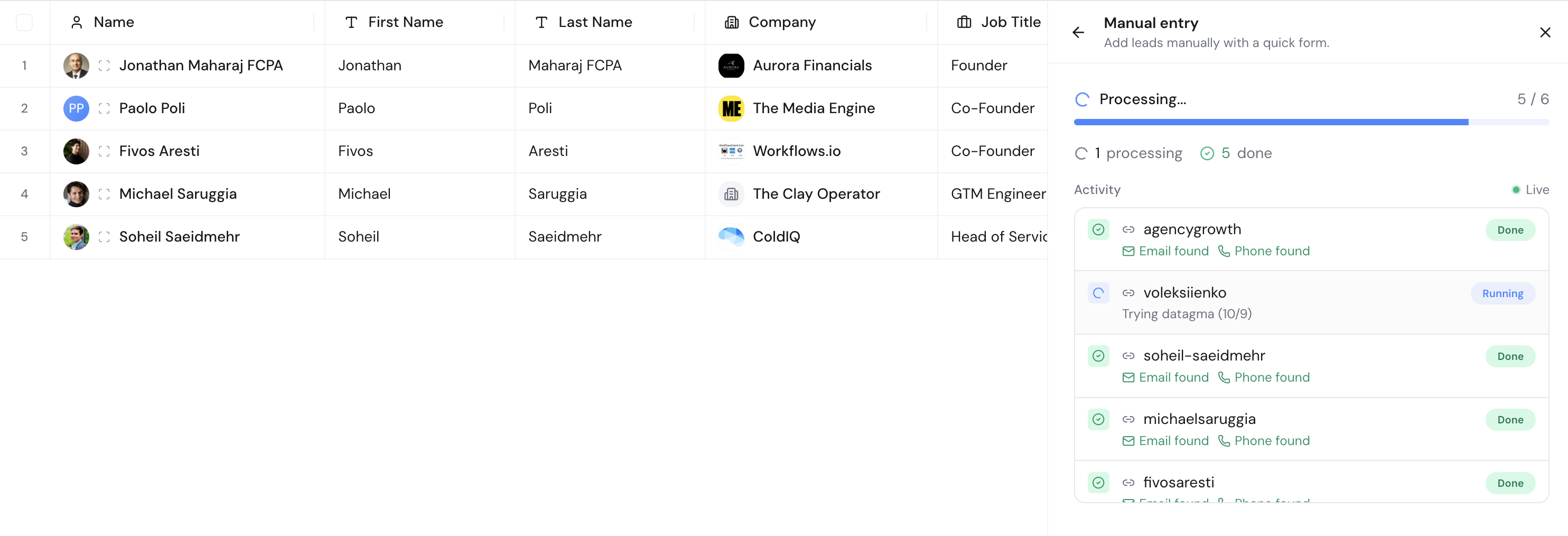
You can:
- Navigate away (enrichment continues in background)
- View the lead list while processing
- Download partial results anytime
8. Review Results
After completion:
Success metrics:
- Total leads processed
- Successful email enrichments
- Successful phone enrichments
- Failed enrichments (no charge)
- Credits used
Access your data:
- View in the lead list
- Export as CSV
- Push to CRM integration
Advanced Features
Duplicate Detection
Automatic deduplication:
- Checks email, phone, and LinkedIn URL
- Finds duplicates within the upload
- Finds duplicates in existing lists
- Options: Skip, Update, or Create anyway
How it works:
- System hashes unique identifiers
- Compares against existing leads
- Presents duplicate resolution options
- You choose how to handle each duplicate
Batch Processing
For very large files (5,000+ rows):
- Automatic batching: System splits into manageable chunks
- Priority queue: Your batches processed in order
- Partial results: Access completed rows while others process
Column Validation
Before enrichment starts:
- Email format check: Validates email structure
- Phone format check: Validates phone numbers
- Required field check: Ensures minimum data present
- Warning system: Alerts you to potential issues
Best Practices
Data Preparation
-
Clean your data first:
- Remove obvious duplicates
- Standardize company names
- Fix formatting issues
- Remove test/invalid entries
-
Include LinkedIn URLs when possible:
- Dramatically improves match rates
- Enables AI Agent analysis
- Provides additional context
-
Standardize location data:
- Use "San Francisco, CA, USA" format
- Full state names or abbreviations (consistent)
- Include country for international leads
Cost Optimization
-
Start with a test batch:
- Upload 10–50 leads first
- Review match rates
- Adjust data quality if needed
- Scale up once satisfied
-
Enrich strategically:
- Only enrich fields you need
- Email-only enrichment is more cost-effective
- Run Phone Validation only on leads where you need carrier/line-type detail
-
Leverage existing data:
- If you have emails, just enrich phones
- Use AI Agents selectively
Quality Assurance
-
Review mapping carefully:
- Wrong mappings = poor results
- Check preview rows
- Verify required fields mapped
-
Monitor initial results:
- Watch first 10–20 completions
- Check data quality
- Pause if something looks wrong
-
Export and verify:
- Download results
- Spot-check accuracy
- Validate critical fields
Troubleshooting
Low Match Rates
Problem: Only 30–40% of leads enriched successfully
Solutions:
- Add more input data (LinkedIn URLs, job titles)
- Check company name accuracy
- Verify name spelling
- Include location information
- Try with smaller, high-quality sample
Upload Errors
Problem: CSV file won't upload
Common causes:
- File too large (>10MB) — split into multiple files
- Invalid encoding — save as UTF-8
- Formatting issues — check for special characters
- Too many columns — limit to necessary fields
Mapping Issues
Problem: Columns won't map correctly
Solutions:
- Check for extra spaces in headers
- Rename CSV headers to match expected format
- Use consistent data types
- Remove special characters from headers
Duplicate Warnings
Problem: System shows many duplicates
Solutions:
- Review duplicate resolution options
- Choose "Skip duplicates" if intentional
- Use "Update existing" to refresh data
- Clean source file before upload
Example Workflows
Workflow 1: Conference Attendee List
Scenario: Enriching 500 conference attendees
1. Export attendee list from event platform
2. Clean data: standardize company names, fix typos
3. Upload to Cleanlist bulk enrichment
4. Map: First Name, Last Name, Company, Title
5. Select: Email only (1 credit × 500 = up to 500 credits)
6. Create new list: "TechConf 2024 Attendees"
7. Monitor enrichment progress
8. Export enriched list
9. Import to email marketing platform
Workflow 2: Account-Based Marketing
Scenario: Enriching contacts from target accounts
1. Export contacts from Sales Navigator
2. Include LinkedIn URLs in export
3. Upload to Cleanlist
4. Map: LinkedIn URL, Name, Company, Title
5. Select: Email + Phone (up to 11 credits × 200 = up to 2,200 credits)
6. Add to existing list: "Q4 ABM Campaign"
7. Use AI Agents for qualification
8. Export qualified leads
9. Push to CRM via integration
Workflow 3: Data Migration
Scenario: Migrating from another enrichment tool
1. Export all data from previous tool
2. Filter for incomplete records (missing email or phone)
3. Upload incomplete records to Cleanlist
4. Map all available fields
5. Select: Only enrich missing fields
6. Update existing lead list
7. Validate results
8. Compare costs vs. previous tool